16-Bit Pixel Art Style
16-bit console golden age. Study this look for your storyboard frames before planning motion and editing.
Storyboard opens a new project. This preset is not selected automatically.
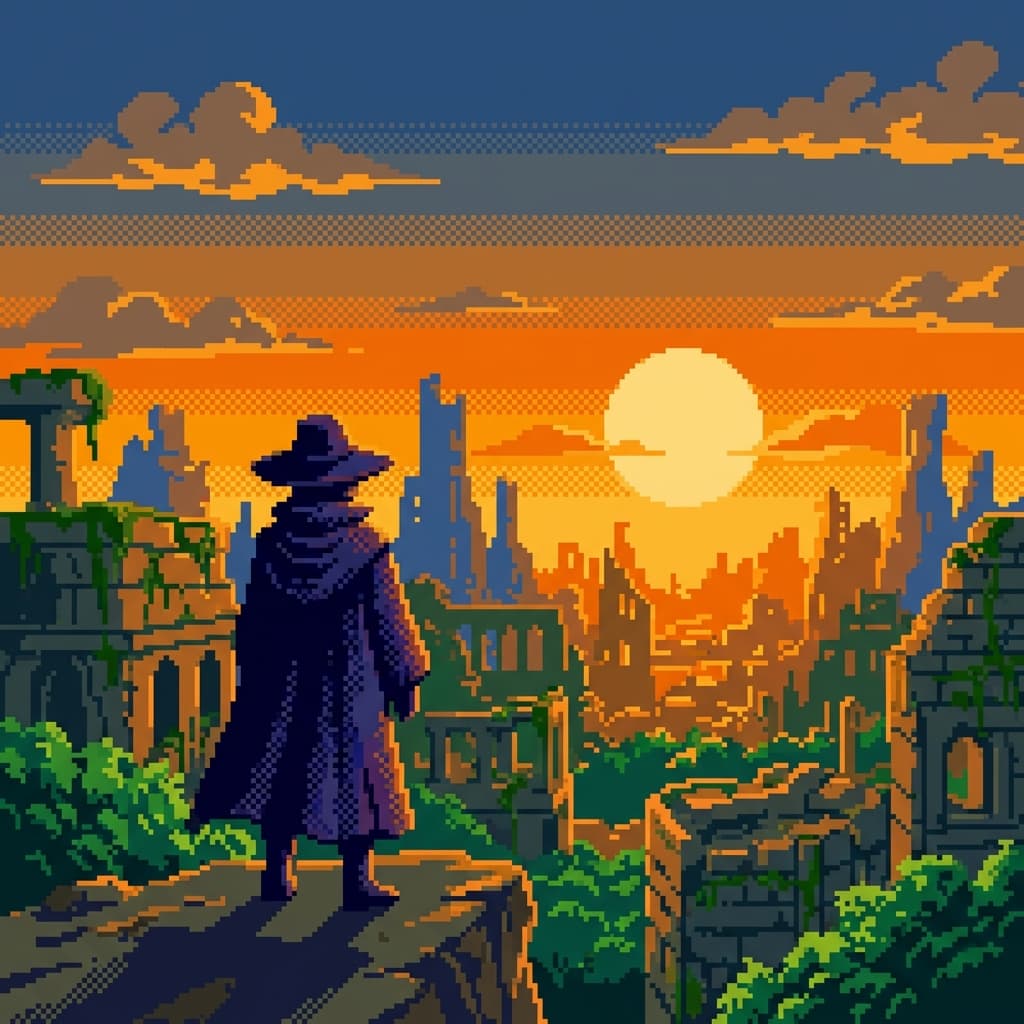
Using the 16-bit Pixel Art style
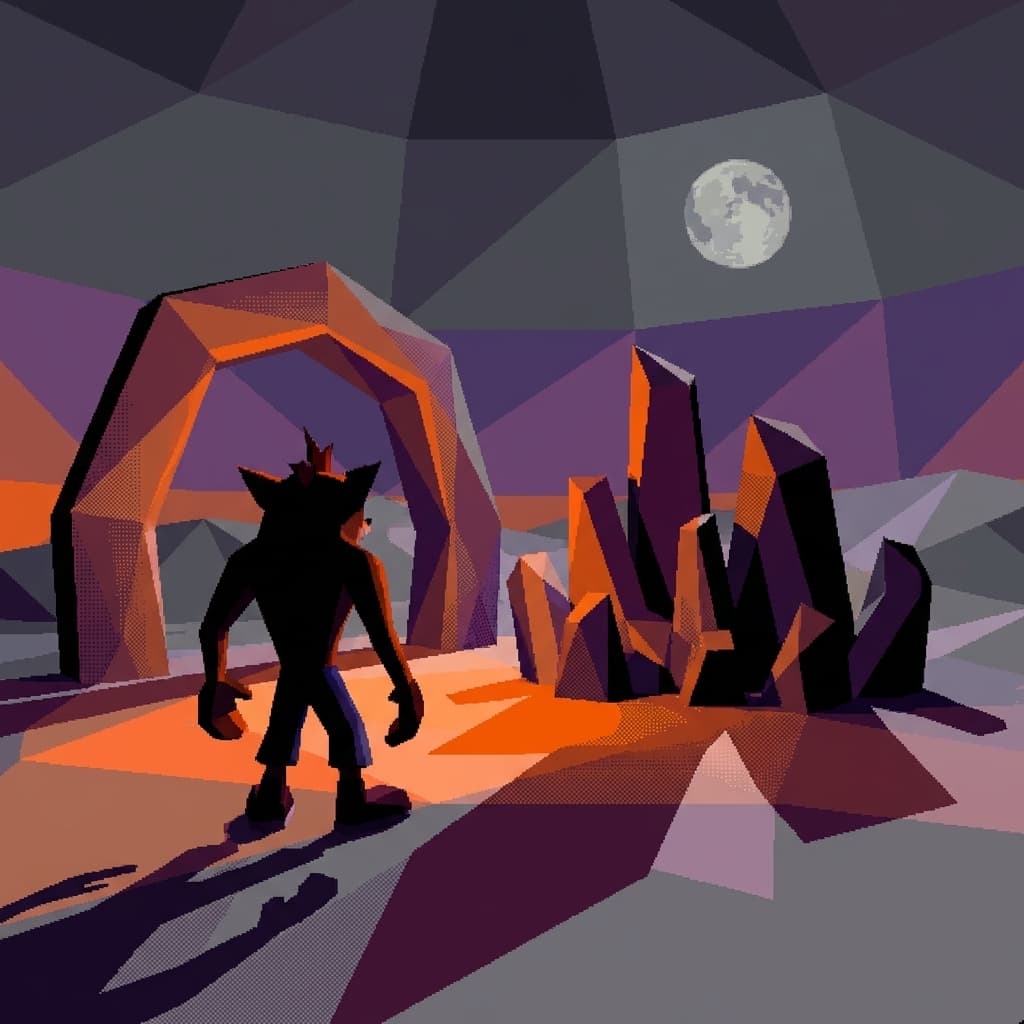
16-bit pixel art recreates the look of classic console games: a limited but richer palette than 8-bit, crisp square pixels, no anti-aliasing, and readable silhouettes at small sizes. Shading uses hand-placed color steps and dithering instead of smooth gradients, and backgrounds often stack parallax layers for depth. The style fits retro game key art, indie trailers, YouTube thumbnails, title cards, and nostalgic storyboards where each scene should feel like a playable level. Prompt tips: name the camera view (side-scrolling, top-down, or isometric), keep characters to a few colors, describe the light source clearly, and ask for flat backgrounds with distinct foreground layers. Avoid terms like photorealistic or soft focus, which blur the pixel grid. To keep a series consistent, reuse the same palette description and sprite scale in every prompt so characters do not change size between scenes.
About the 16-bit Pixel Art style
Visual characteristics
Refined 16-bit pixel art in 1990s 16-bit-console visual sophistication. 320×224 resolution with 256 on-screen colors from 32,768 palette. Advanced dithering techniques creating gradient illusions, detailed 32×32 to 64×64 character sprites. Color palette: speed blue, emerald green, sunset gradient. Implied parallax scrolling layers, pseudo-3D rotation effects. Golden age 16-bit JRPG visual polish.
Color palette
Colors specified in the preset recipe, not a guarantee for every generated frame.
- #0066ff
- #00cc66
- #ff6600
- #ffcc00
Adapt the preset recipe
Select and copy the recipe below as a starting point. In Storyboard, choose My styles, create a custom style and open Advanced mode. Adapt the wording to your scene and the editor's 1,000-character limit; a Studio preset is not imported automatically. Camera and film references describe the intended look, not equipment used to create the preview or guaranteed animation.
Transform the scene into refined 16-bit pixel art in 1990s 16-bit-console visual sophistication. 320×224 resolution with 256 on-screen colors from 32,768 palette. Advanced dithering techniques creating gradient illusions, detailed 32×32 to 64×64 character sprites. Color palette: speed blue (#0066FF), emerald green (#00CC66), sunset gradient (#FF6600 to #FFCC00). Implied parallax scrolling layers, pseudo-3D rotation effects. Golden age 16-bit JRPG visual polish.
Plan shots in the 16-bit Pixel Art look
Step 1: Study the visual recipe
Compare the 16-bit Pixel Art still preview with the visual notes below. Choose which lighting, palette and framing cues belong in your shot list.
Step 2: Build your storyboard
Open a new Storyboard, add your script and character references, then choose its style separately. To adapt this recipe, paste it into a custom style in Advanced mode.
Step 3: Review before video
Review the generated frames for continuity. A still does not specify motion, pacing or audio; plan those as separate decisions for your video.
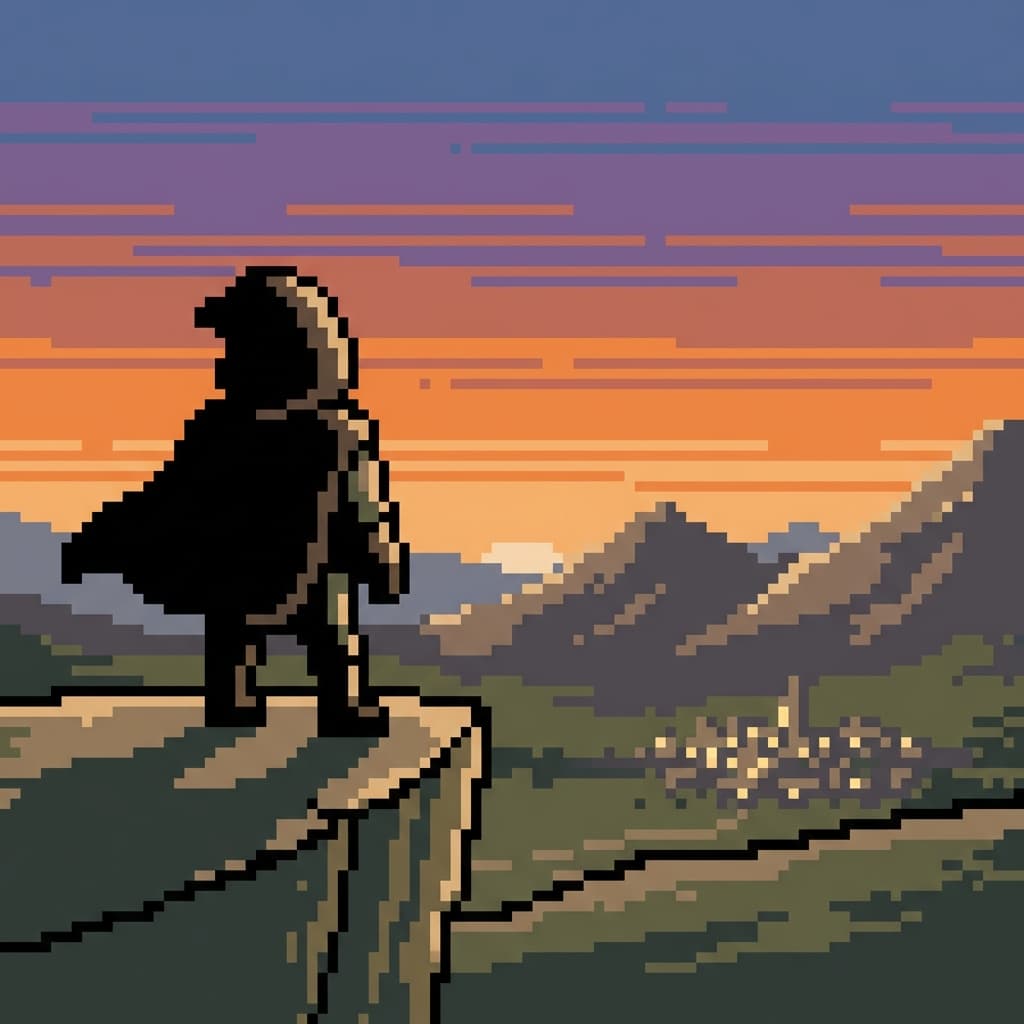
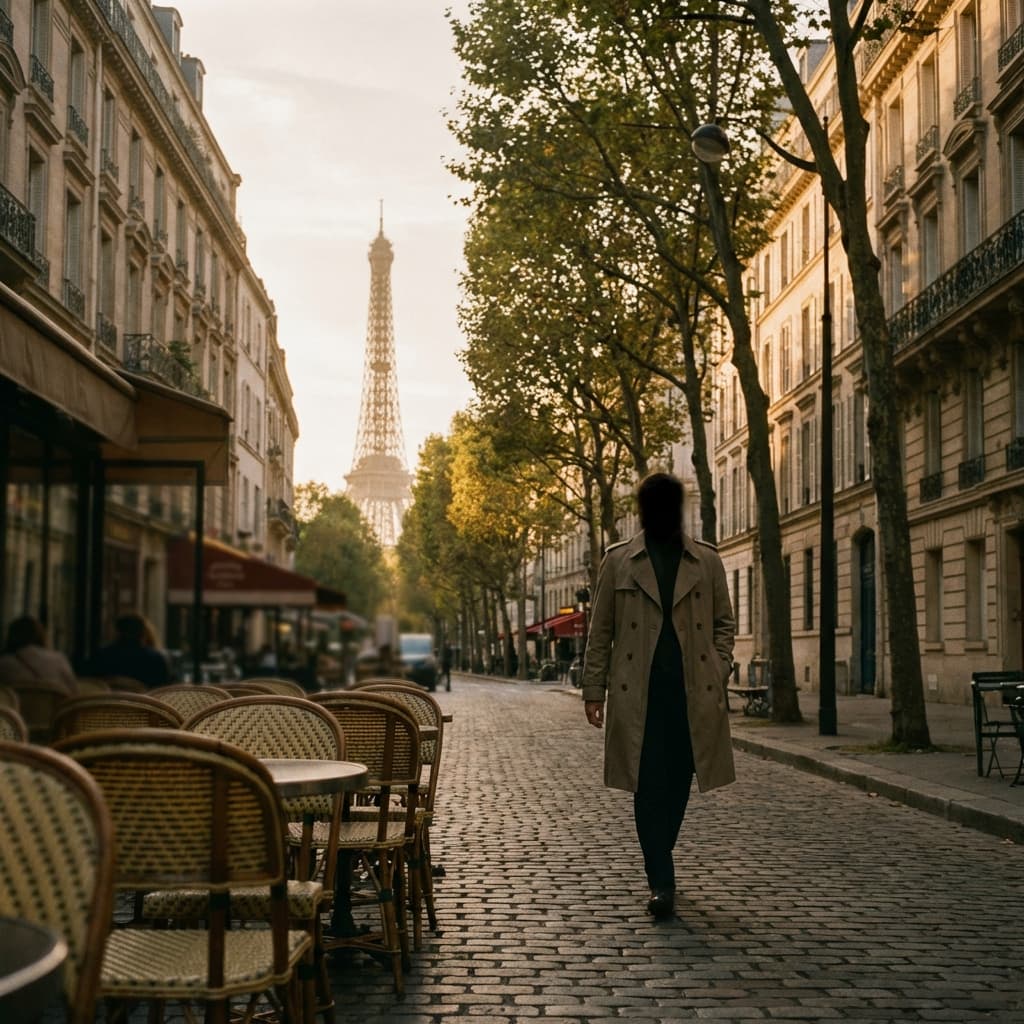
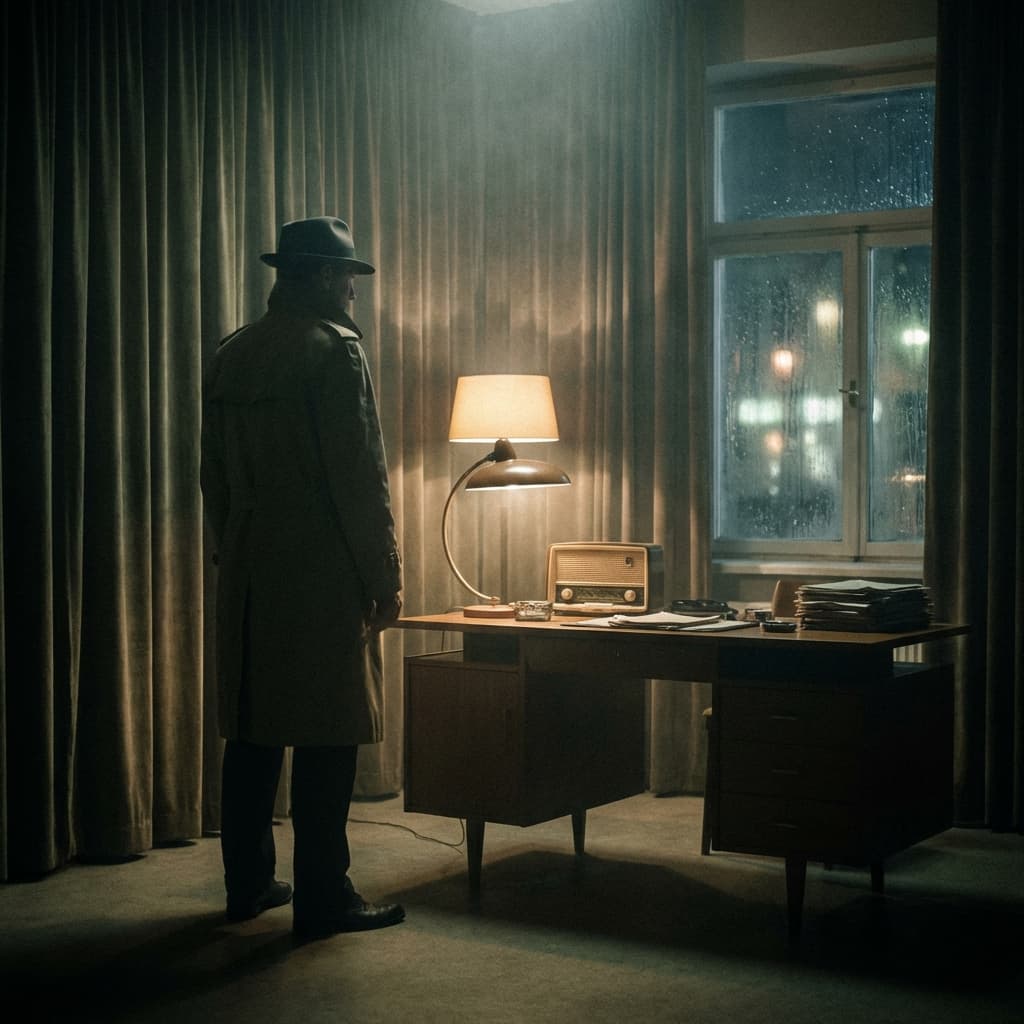
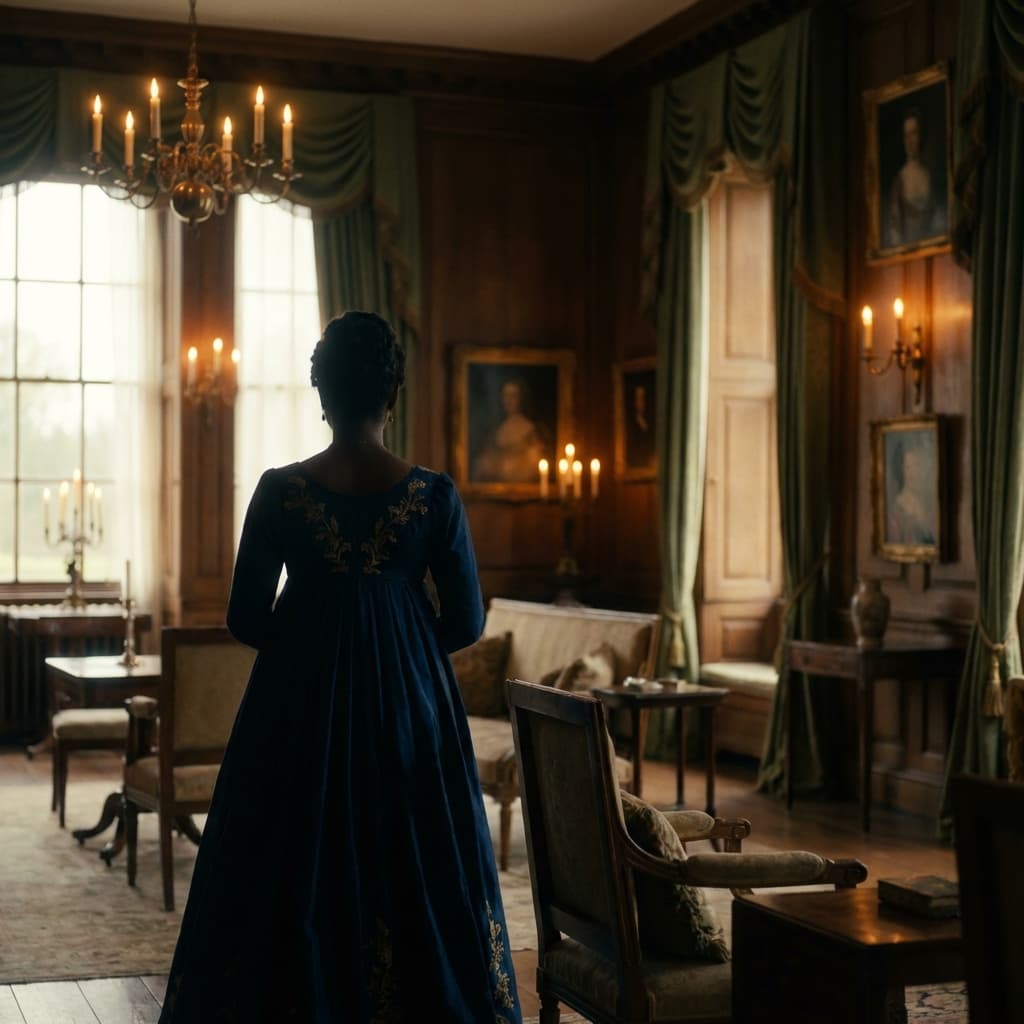
Plan Your 16-bit Pixel Art Storyboard
Use the 16-bit Pixel Art notes as a visual brief. Storyboard opens a new project; it does not automatically select this Studio preset.