8-bit Pixel Art visual style
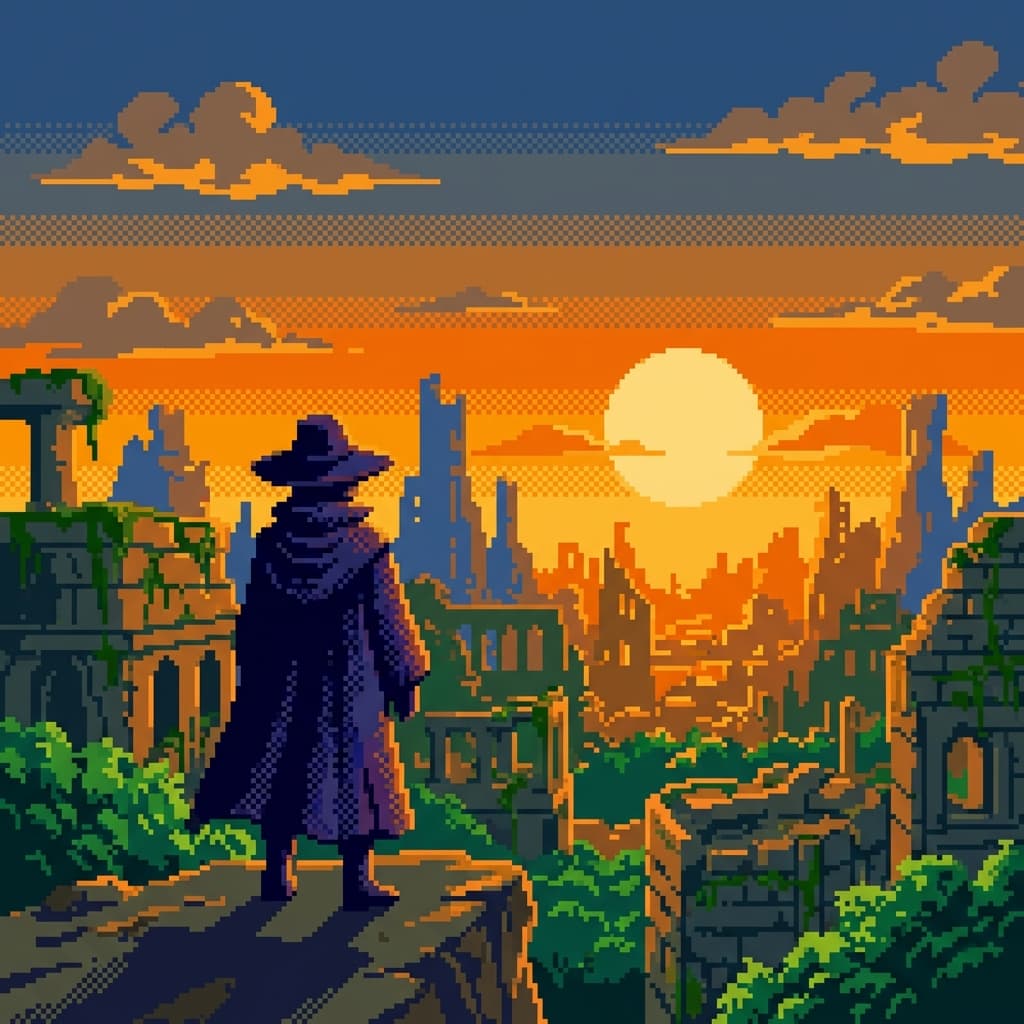
Early console retro, limited palette. Study this look for your storyboard frames before planning motion and editing.
Storyboard opens a new project. This preset is not selected automatically.

About the 8-bit Pixel Art style
Visual characteristics
256×240 resolution with chunky 8×8 pixel tiles, limited palette: 54 colors with 4 palettes of 4 colors per sprite. Classic colors: hero red, sky blue, coin gold, pipe green. Simple but expressive 16×16 or 24×32 character sprites, tile-based environments with black outlines.
Color palette
Colors specified in the preset recipe, not a guarantee for every generated frame.
- #e52521
- #5c94fc
- #fac000
- #00a800
- #000000
Adapt the preset recipe
Select and copy the recipe below as a starting point. In Storyboard, choose My styles, create a custom style and open Advanced mode. Adapt the wording to your scene and the editor's 1,000-character limit; a Studio preset is not imported automatically. Camera and film references describe the intended look, not equipment used to create the preview or guaranteed animation.
256×240 resolution with chunky 8×8 pixel tiles, limited palette: 54 colors with 4 palettes of 4 colors per sprite. Classic colors: hero red (#E52521), sky blue (#5C94FC), coin gold (#FAC000), pipe green (#00A800). Simple but expressive 16×16 or 24×32 character sprites, tile-based environments with black (#000000) outlines.
Plan shots in the 8-bit Pixel Art look
Step 1: Study the visual recipe
Compare the 8-bit Pixel Art still preview with the visual notes below. Choose which lighting, palette and framing cues belong in your shot list.
Step 2: Build your storyboard
Open a new Storyboard, add your script and character references, then choose its style separately. To adapt this recipe, paste it into a custom style in Advanced mode.
Step 3: Review before video
Review the generated frames for continuity. A still does not specify motion, pacing or audio; plan those as separate decisions for your video.

Plan Your 8-bit Pixel Art Storyboard
Use the 8-bit Pixel Art notes as a visual brief. Storyboard opens a new project; it does not automatically select this Studio preset.