Isometric View visual style
Top-down tactical angle. Study this look for your storyboard frames before planning motion and editing.
Storyboard opens a new project. This preset is not selected automatically.
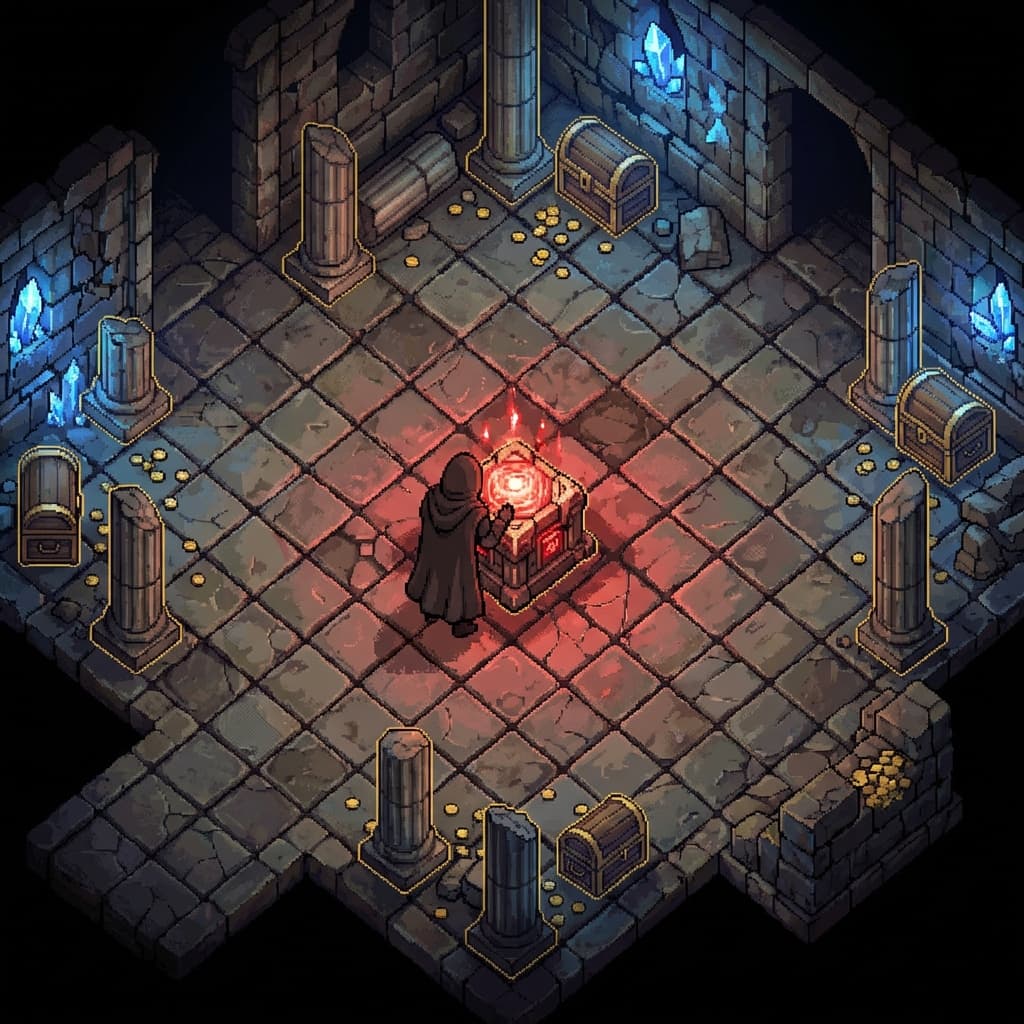
About the Isometric View style
Visual characteristics
Isometric game art in top-down action-RPG tactical perspective. Classic 26.57° isometric projection (2:1 pixel ratio) revealing full environment layout. Intricate tile-based environments with 64×32 pixel diamond tiles. Color palette: dungeon stone, gold treasure, blood red, magic blue. Clear visual hierarchy with darker backgrounds and brighter interactive elements. Environmental storytelling through props and lighting, that satisfying top-down tactical beauty.
Color palette
Colors specified in the preset recipe, not a guarantee for every generated frame.
- #696969
- #ffd700
- #8b0000
- #4169e1
Adapt the preset recipe
Select and copy the recipe below as a starting point. In Storyboard, choose My styles, create a custom style and open Advanced mode. Adapt the wording to your scene and the editor's 1,000-character limit; a Studio preset is not imported automatically. Camera and film references describe the intended look, not equipment used to create the preview or guaranteed animation.
Transform the scene into isometric game art in top-down action-RPG tactical perspective. Classic 26.57° isometric projection (2:1 pixel ratio) revealing full environment layout. Intricate tile-based environments with 64×32 pixel diamond tiles. Color palette: dungeon stone (#696969), gold treasure (#FFD700), blood red (#8B0000), magic blue (#4169E1). Clear visual hierarchy with darker backgrounds and brighter interactive elements. Environmental storytelling through props and lighting, that satisfying top-down tactical beauty.
Plan shots in the Isometric View look
Step 1: Study the visual recipe
Compare the Isometric View still preview with the visual notes below. Choose which lighting, palette and framing cues belong in your shot list.
Step 2: Build your storyboard
Open a new Storyboard, add your script and character references, then choose its style separately. To adapt this recipe, paste it into a custom style in Advanced mode.
Step 3: Review before video
Review the generated frames for continuity. A still does not specify motion, pacing or audio; plan those as separate decisions for your video.
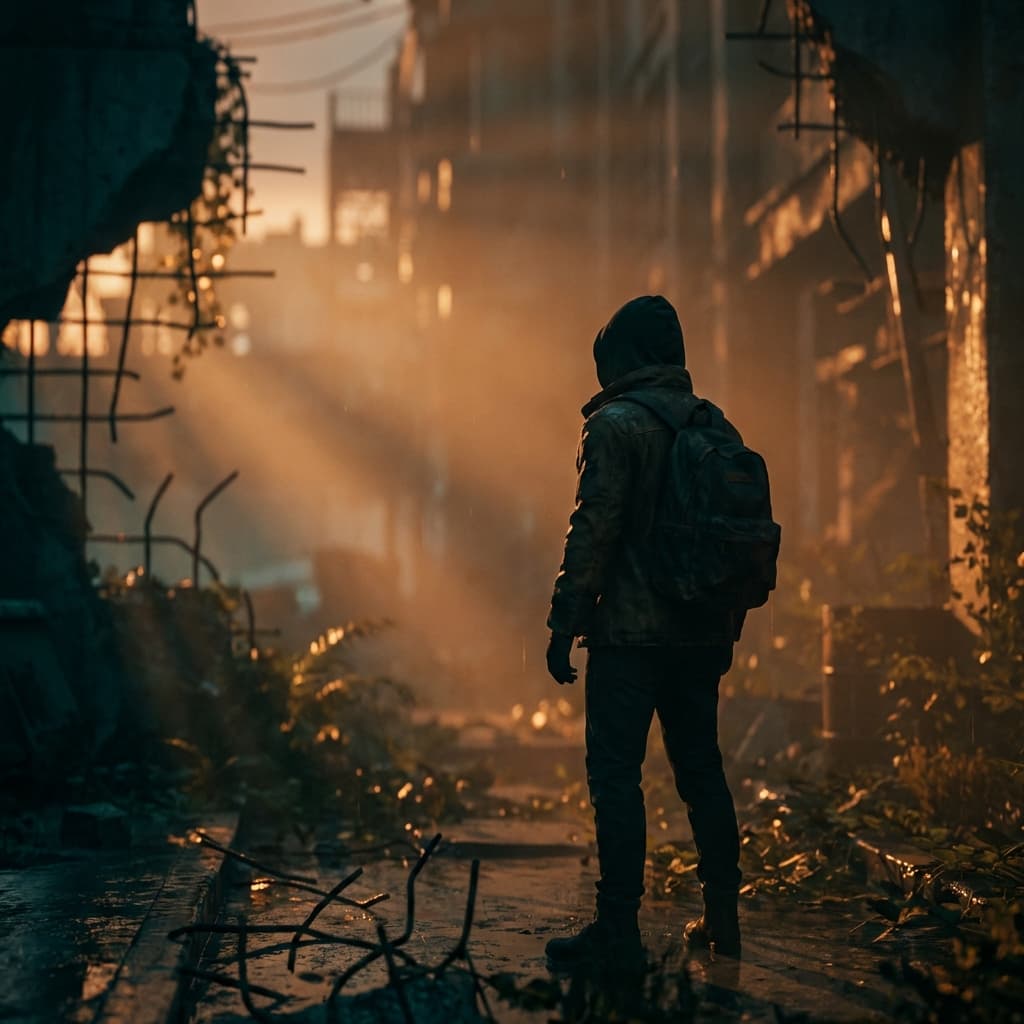

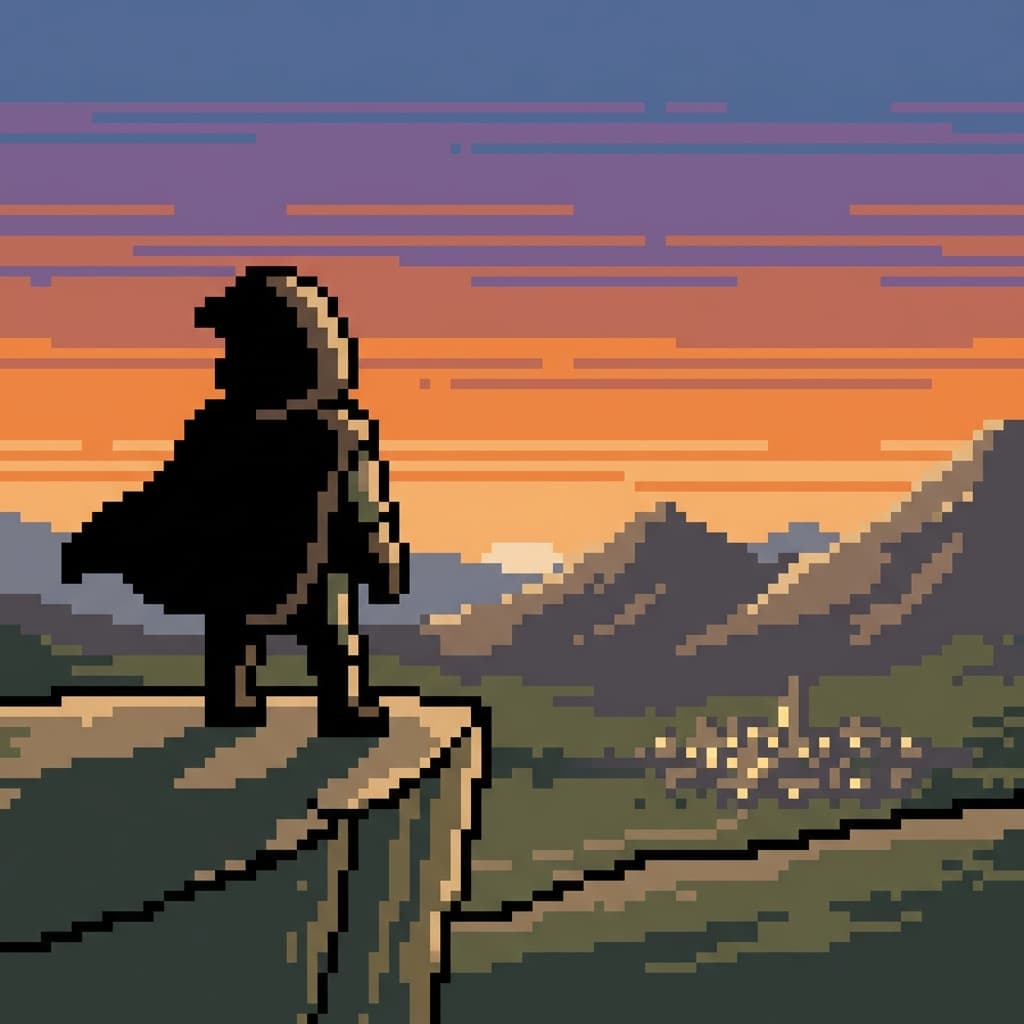
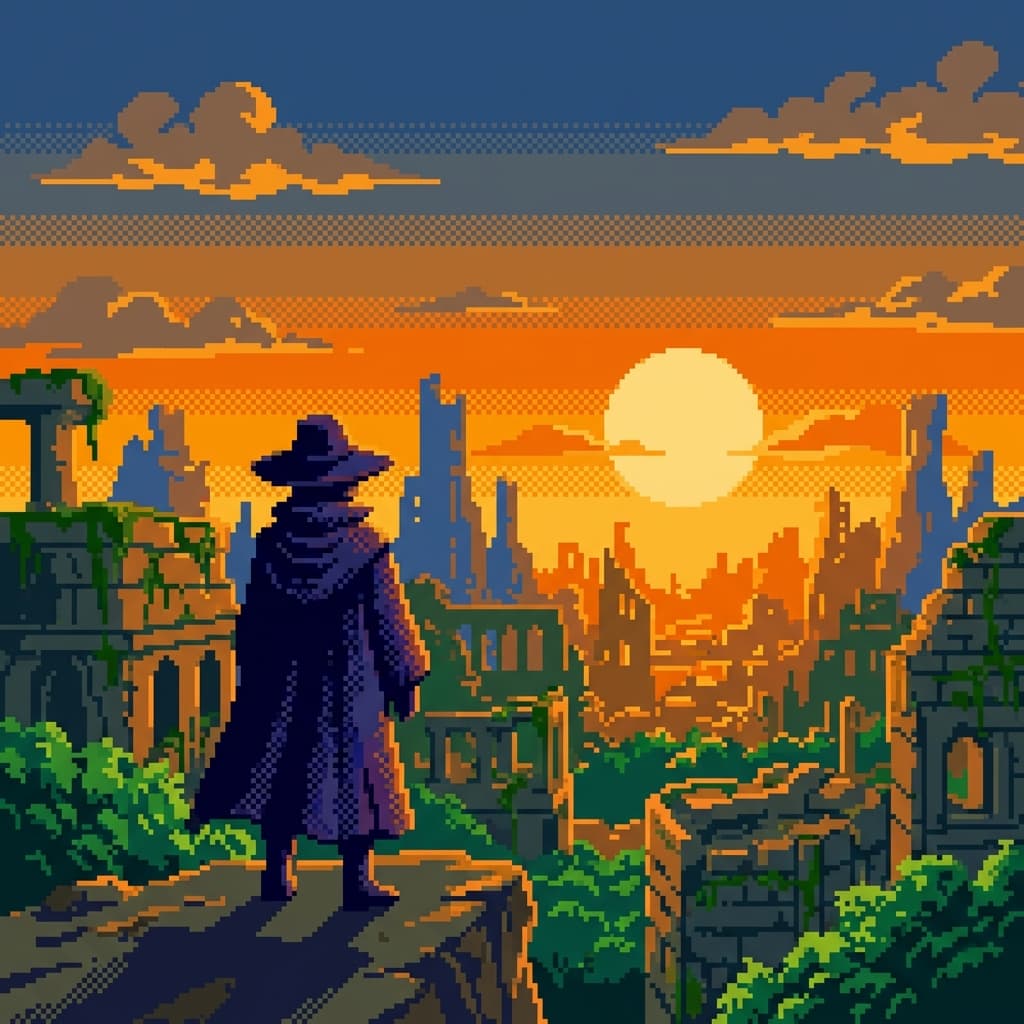
Plan Your Isometric View Storyboard
Use the Isometric View notes as a visual brief. Storyboard opens a new project; it does not automatically select this Studio preset.