Transformation Effects visual style
Werewolf, morphing, shapeshifting. Study this look for your storyboard frames before planning motion and editing.
Storyboard opens a new project. This preset is not selected automatically.
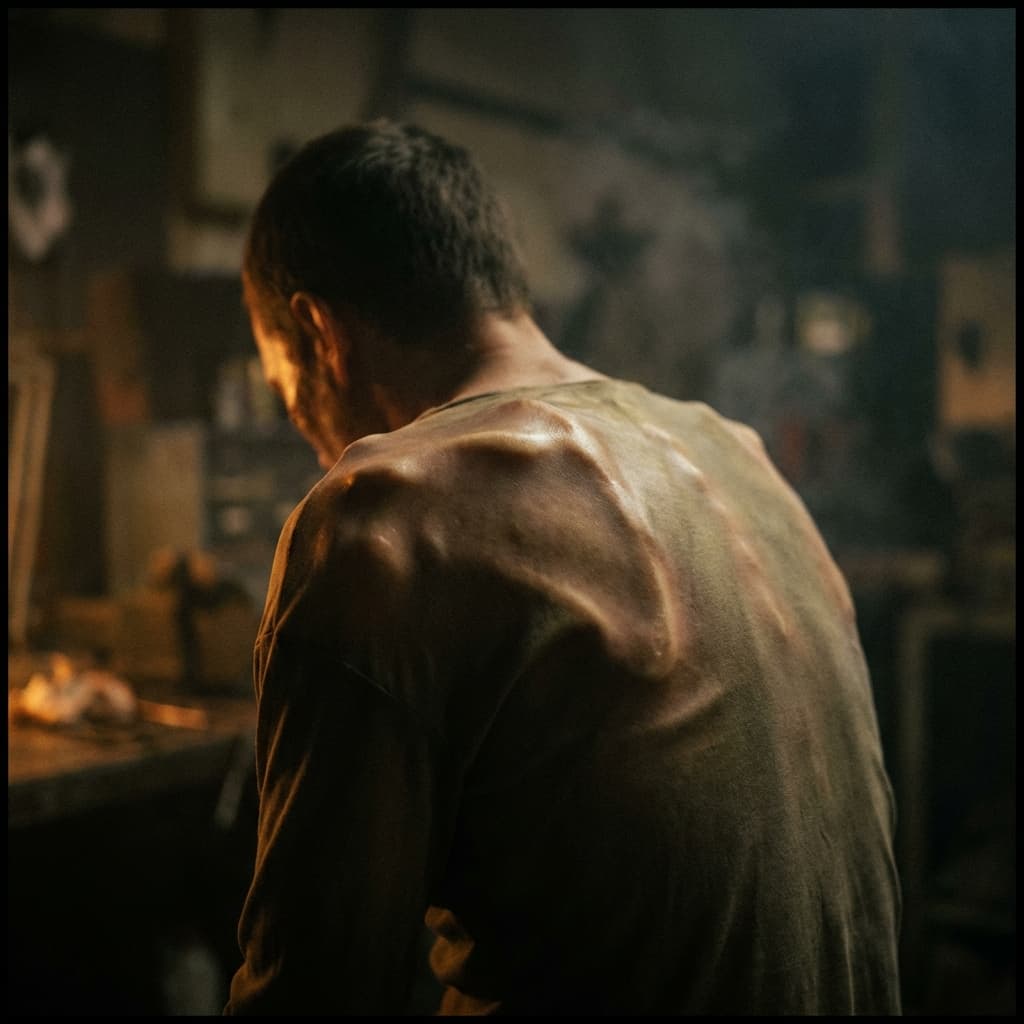
About the Transformation Effects style
Visual characteristics
Transformation VFX in the 1981-1999 practical-to-digital morphing tradition. Impossible metamorphosis with excruciating anatomical detail: bones protruding beneath stretching skin, features melting and reforming in fleshy pink. Blend shape interpolation between forms, muscle fiber visible through translucent tissue. Time-lapse progression at 12fps capturing each stage of change, that body horror beauty in transition between states of being.
Color palette
Colors specified in the preset recipe, not a guarantee for every generated frame.
- #deb887
- #e8b4b8
- #ffe4e1
Adapt the preset recipe
Select and copy the recipe below as a starting point. In Storyboard, choose My styles, create a custom style and open Advanced mode. Adapt the wording to your scene and the editor's 1,000-character limit; a Studio preset is not imported automatically. Camera and film references describe the intended look, not equipment used to create the preview or guaranteed animation.
Transform the scene into transformation VFX in the 1981-1999 practical-to-digital morphing tradition. Impossible metamorphosis with excruciating anatomical detail: bones protruding beneath stretching skin (#DEB887), features melting and reforming in fleshy pink (#E8B4B8). Blend shape interpolation between forms, muscle fiber visible through translucent tissue (#FFE4E1). Time-lapse progression at 12fps capturing each stage of change, that body horror beauty in transition between states of being.
Plan shots in the Transformation Effects look
Step 1: Study the visual recipe
Compare the Transformation Effects still preview with the visual notes below. Choose which lighting, palette and framing cues belong in your shot list.
Step 2: Build your storyboard
Open a new Storyboard, add your script and character references, then choose its style separately. To adapt this recipe, paste it into a custom style in Advanced mode.
Step 3: Review before video
Review the generated frames for continuity. A still does not specify motion, pacing or audio; plan those as separate decisions for your video.






Plan Your Transformation Effects Storyboard
Use the Transformation Effects notes as a visual brief. Storyboard opens a new project; it does not automatically select this Studio preset.