Practical Effects visual style
Real explosions, miniatures. Study this look for your storyboard frames before planning motion and editing.
Storyboard opens a new project. This preset is not selected automatically.
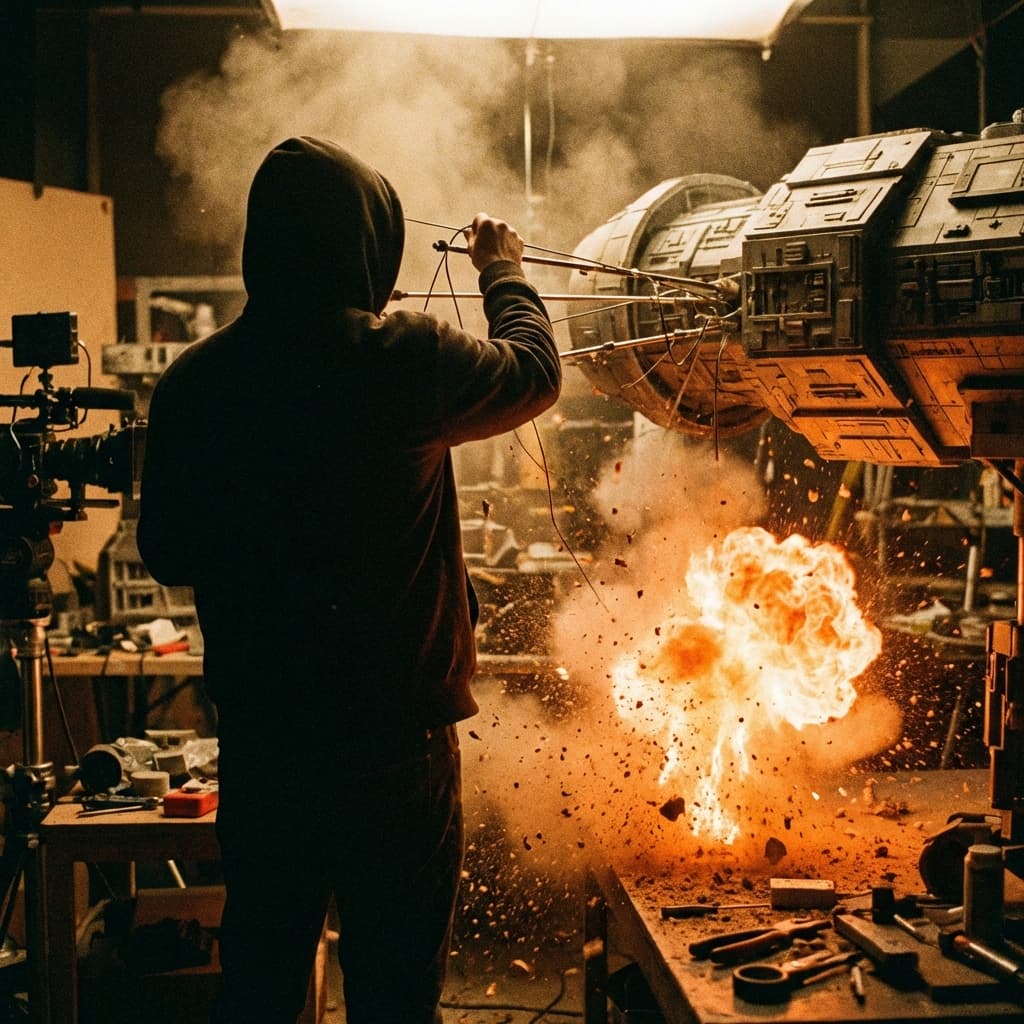
About the Practical Effects style
Visual characteristics
Practical special effects in the 1977-1993 pre-digital miniature and creature workshop tradition. Real pyrotechnics with gasoline fireballs, physical 1:24 scale miniature sets with forced perspective. Visible monofilament wires and rod puppetry, dust and cork debris with realistic gravity. 35mm film grain texture, tungsten practical lighting. That tangible pre-digital craftsmanship celebrating analog movie magic.
Color palette
Colors specified in the preset recipe, not a guarantee for every generated frame.
- #ff4500
- #ffdab9
Adapt the preset recipe
Select and copy the recipe below as a starting point. In Storyboard, choose My styles, create a custom style and open Advanced mode. Adapt the wording to your scene and the editor's 1,000-character limit; a Studio preset is not imported automatically. Camera and film references describe the intended look, not equipment used to create the preview or guaranteed animation.
Transform the scene into practical special effects in the 1977-1993 pre-digital miniature and creature workshop tradition. Real pyrotechnics with gasoline fireballs (#FF4500), physical 1:24 scale miniature sets with forced perspective. Visible monofilament wires and rod puppetry, dust and cork debris with realistic gravity. 35mm film grain texture, tungsten practical lighting (#FFDAB9). That tangible pre-digital craftsmanship celebrating analog movie magic.
Plan shots in the Practical Effects look
Step 1: Study the visual recipe
Compare the Practical Effects still preview with the visual notes below. Choose which lighting, palette and framing cues belong in your shot list.
Step 2: Build your storyboard
Open a new Storyboard, add your script and character references, then choose its style separately. To adapt this recipe, paste it into a custom style in Advanced mode.
Step 3: Review before video
Review the generated frames for continuity. A still does not specify motion, pacing or audio; plan those as separate decisions for your video.


Plan Your Practical Effects Storyboard
Use the Practical Effects notes as a visual brief. Storyboard opens a new project; it does not automatically select this Studio preset.