Wizard vs Demon Bridge scene
Ancient bridge standoff. Use this composition as a reference for a storyboard beat, then plan the motion around it.
Storyboard opens a new project, not a preselected iconic scene.
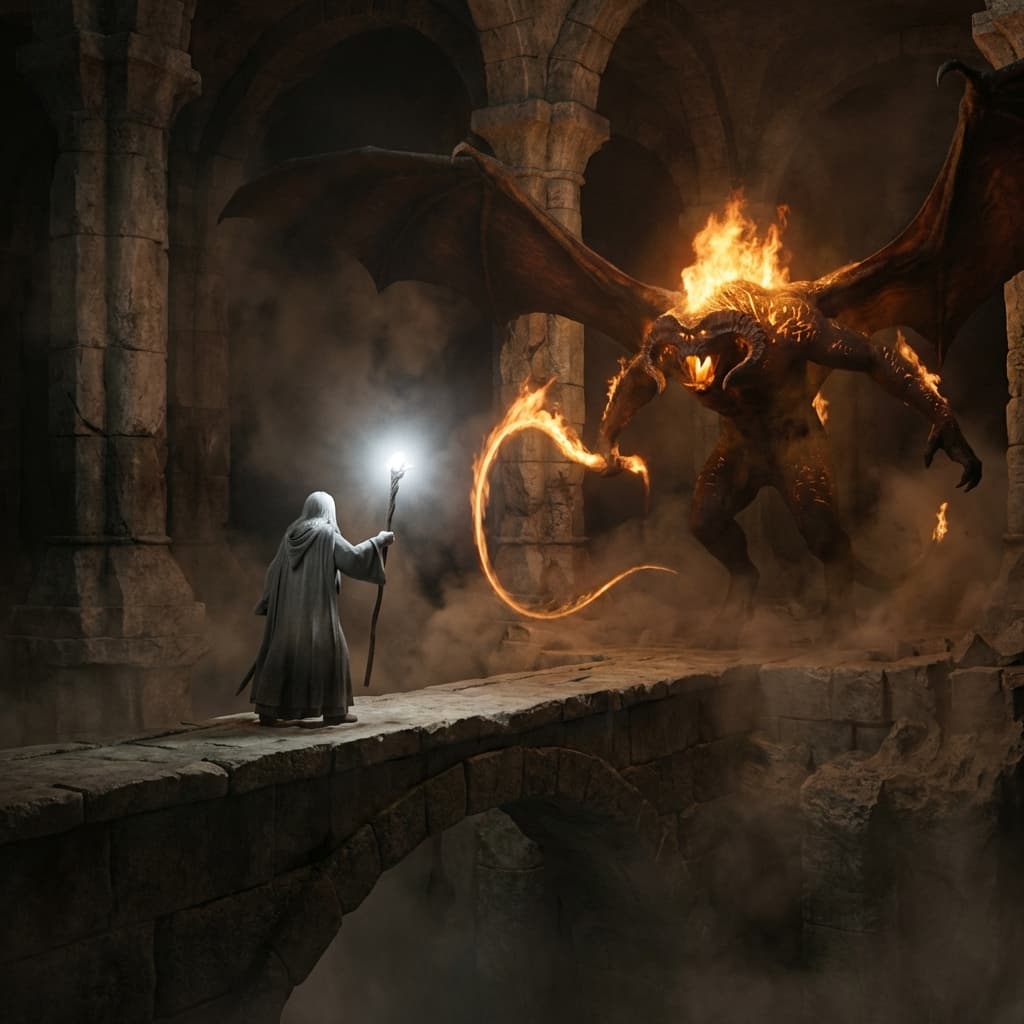
Recreating Wizard vs Demon Bridge
Visual composition
The grey wizard stands alone on the narrow span, staff planted, radiant white light blazing from within as divine power manifests. Before him, the shadow-and-flame demon rises wreathed in fire, wings of darkness spreading to fill the ancient hall. The chasm yawns infinitely below, ancient pillars crumbling in deep charcoal. Anamorphic 2.39:1 with deep red-orange fire practical lighting, miniature environments at 1:1 scale.
Color palette
Colors specified in the preset recipe, not a guarantee for every generated frame.
- #fffff0
- #ff4500
- #2f2f2f
Adapt the scene recipe
Select and copy this recipe as a shot-planning reference. Adapt its staging and lighting in your scene prompt, or create a custom style in Storyboard's My styles tab using Advanced mode. The custom-style editor has a 1,000-character limit. Camera and lens references describe the intended aesthetic, not how this still was photographed or a promise of video output.
The grey wizard stands alone on the narrow span, staff planted, radiant white light (#FFFFF0) blazing from within as divine power manifests. Before him, the shadow-and-flame demon rises wreathed in fire (#FF4500), wings of darkness spreading to fill the ancient hall. The chasm yawns infinitely below, ancient pillars crumbling in deep charcoal (#2F2F2F). Anamorphic 2.39:1 with deep red-orange fire practical lighting, miniature environments at 1:1 scale.
These presets are visual references, not footage from any production. Consider rights to recognizable characters, artworks and likenesses before publishing.
Plan a storyboard around Wizard vs Demon Bridge
Step 1: Break down the frame
Read the Wizard vs Demon Bridge recipe and compare its subject placement, light and setting with the still preview. Decide which cues your own scene should preserve.
Step 2: Place it in your story
Create a Storyboard with your script and references. Adapt the recipe in a custom style or scene prompt; this catalog link does not preselect the iconic scene.
Step 3: Plan the adjacent shots
Review the frame alongside the shots before and after it. Specify movement, timing and sound separately rather than treating the still preview as a finished video.
Plan Your Wizard vs Demon Bridge Storyboard
Plan the shots around Wizard vs Demon Bridge in a new Storyboard, or explore the scene in Studio for a single-image task. The two workflows are separate.